
sudo Command in Linux: Execute Privileged Commands and Fix Common Errors
Learn sudo command in linux with syntax, essential flags, practical terminal examples, real-world sysadmin workflows, security tips, and troubleshooting.

9 min read
Learn sudo command in linux with syntax, essential flags, practical terminal examples, real-world sysadmin workflows, security tips, and troubleshooting.
- What sudo Does and When to Use It
- Availability and Installation Across Linux Distributions
- Command Syntax, Arguments, and Exit Status Codes
Mastering sudo command in linux is an essential skill for Linux system administrators, developers, and DevOps engineers. Mastering the sudo command in Linux is essential for every system administrator, software engineer, and cloud operator. Rather than sharing a single root password across a team—which makes revoking individual access impossible and erases accountability in audit logs—sudo enables fine-grained privilege delegation. Engineers authenticate using their **own personal password**, execute only the administrative commands permitted by policy, and leave a complete audit trail in /var/log/auth.log or journalctl recording who ran what command, from which terminal, and in which working directory.
When you run a command with sudo, the utility verifies your identity via PAM, checks /etc/sudoers (and drop-in files in /etc/sudoers.d/) to confirm your user or group (%sudo on Debian/Ubuntu, %wheel on RHEL/Fedora) is authorized, caches an authentication timestamp token for a configurable timeout (typically 5 to 15 minutes per terminal), scrubs dangerous environment variables (LD_PRELOAD, PATH), and executes the target binary with effective UID 0 (or the user specified by -u).
Beyond running basic root commands, understanding the sudo command in Linux includes knowing how to fix the classic user is not in the sudoers file and shell redirection (sudo echo ... > /etc/file: Permission denied) errors, how to write syntax-checked drop-in files with visudo -f /etc/sudoers.d/name, and how to replay privileged commands cleanly.
What sudo Does and When to Use It
Because sudo must transition an unprivileged caller's process to UID 0, /usr/bin/sudo is installed with the **setuid root** bit (-rwsr-xr-x 1 root root). Modern sudo (1.9+) uses a modular plugin architecture configured in /etc/sudo.conf: the policy plugin (sudoers.so) parses /etc/sudoers and /etc/sudoers.d/*, verifies that none of those policy files are world-writable or owned by non-root users, and evaluates env_reset and secure_path rules. After successful authentication, sudo writes a timestamp record in /run/sudo/ts/ tied to the calling terminal's PTY/session ID and monotonic system clock.
When env_reset is active (the default on all major distributions), sudo strips almost all caller environment variables and replaces $PATH with the hardcoded secure_path defined in /etc/sudoers (typically /usr/local/sbin:/usr/local/bin:/usr/sbin:/usr/bin:/sbin:/bin). It also populates SUDO_USER, SUDO_UID, SUDO_GID, and SUDO_COMMAND so child scripts and audit hooks can identify the original human caller.
Linux enforces discretionary access control (DAC) by evaluating the effective User ID (EUID), effective Group ID (EGID), and supplementary groups against inode permission bits. When sudo executes, the Virtual File System (VFS) and active Linux Security Modules (SELinux or AppArmor) validate the caller's privileges before committing changes to disk or account databases.
Availability and Installation Across Linux Distributions
The sudo utility is packaged in sudo across mainstream Linux distributions. It is pre-installed on standard Ubuntu, Debian, RHEL, Rocky Linux, AlmaLinux, Fedora, and Arch Linux systems, while minimal container images may require manual installation:
Before running administrative tasks or automation scripts, verify whether sudo is installed and inspect which binary path and version your shell resolves:
type -a sudo
sudo --version 2>/dev/null || man -f sudo

# Illustrative output (reviewed against documentation)
sudo is /usr/bin/sudo
sudo (sudo)
# Debian / Ubuntu
sudo apt-get update && sudo apt-get install -y sudo
# RHEL / Rocky / AlmaLinux / Fedora
sudo dnf install -y sudo
# Arch Linux
sudo pacman -S --noconfirm sudo
# Alpine Linux
sudo apk add --no-cache sudoCommand Syntax, Arguments, and Exit Status Codes
sudo [OPTIONS] [-u USER] [-g GROUP] COMMAND [ARGUMENTS...]The syntax sudo [OPTIONS] COMMAND [ARG...] executes COMMAND directly via execve(2) without invoking an intermediate shell unless -i (--login) or -s (--shell) is passed. This means shell built-ins (cd, umask, export, source) and shell redirection operators (>, >>, |) are interpreted by your **unprivileged calling shell** *before* sudo even starts!
In /etc/sudoers, policy rules follow the grammar USER_OR_%GROUP HOST=(RUNAS_USER:RUNAS_GROUP) [NOPASSWD:] COMMAND_LIST. For example, %sudo ALL=(ALL:ALL) ALL allows any member of the sudo group on ALL hosts to run as ALL users and ALL groups for ALL commands.
0— Target command (orsudo -v/sudo -k/sudo -l) executed and succeeded.1—sudopolicy rejection, authentication failure, configuration error in/etc/sudoers, orsudo -nrequired a password.N— Ifsudosuccessfully launches the target command and that command exits with statusN,sudoreturns exit statusN.
Important Options and Flags Reference
| Option / Flag | Long Form / Argument | Technical Behavior and Purpose |
-i | --login | Start an interactive login shell as the target user (root by default), loading their environment and home directory. |
-s | --shell | Run a non-login shell as the target user, preserving the current working directory. |
-u | --user USER | Run the specified command or shell as USER (username or #UID) instead of root. |
-g | --group GROUP | Run the specified command with the primary group set to GROUP. |
-l | --list | List all sudo privileges and command rules permitted (or forbidden) for the current user. |
-v | --validate | Refresh/extend the cached sudo authentication timestamp for another timeout period without running a command. |
-k | --reset-timestamp | Immediately invalidate the user's cached sudo credentials so the next sudo call requires a password. |
-n | --non-interactive | Fail immediately with exit status 1 rather than prompting for a password (ideal for cron jobs and CI scripts). |
-E | --preserve-env | Preserve the caller's environment variables (or pass --preserve-env=VAR1,VAR2 for specific variables). |
-e | --edit FILE... | Safely edit privileged files using a temporary unprivileged copy (equivalent to running sudoedit). |
Choosing between sudo -i, sudo -s, and sudoedit (sudo -e) improves both security and ergonomics. When you need an interactive root shell, always prefer sudo -i over sudo -s or sudo su: sudo -i gives you a clean root login environment with $HOME=/root so tools you run do not pollute your personal /home/username directory with root-owned cache files.
When editing configuration files as root, use sudo -e /etc/nginx/nginx.conf (or sudoedit). Unlike sudo vim, which runs the entire text editor process as root (allowing :!sh shell escapes), sudo -e copies the file to a temporary path, runs your personal $EDITOR as your **unprivileged user**, and copies the modified content back only when you save and exit.
When combining short flags on the command line, POSIX and GNU utilities allow clustering boolean flags behind a single hyphen, provided any option taking an argument appears last. In automated shell scripts, using long-form GNU options where portable makes self-documenting code that is easier to audit during peer review.
Practical Basic and Advanced Usage Examples
1. Run a Command as Root and Replay the Previous Command (sudo !!)
Execute a privileged package or service command with sudo, or use Bash history expansion sudo !! when you forget sudo on the previous command.
systemctl restart nginx
# In interactive Bash/Zsh, 'sudo !!' expands to the previous command:
sudo systemctl restart nginx
sudo systemctl is-active nginx

# Illustrative output (reviewed against documentation)
Failed to restart nginx.service: Access denied
active
In interactive shells, typing sudo !! automatically expands !! to the entire previous command line and executes it with sudo.
2. List Your Permitted sudo Privileges (-l)
Run sudo -l to inspect every sudoers policy option and command rule granted to your account.
sudo -l

# Illustrative output (reviewed against documentation)
Matching Defaults entries for alex on prod-web-01:
    env_reset, mail_badpass, secure_path=/usr/local/sbin:/usr/local/bin:/usr/sbin:/usr/bin:/sbin:/bin, use_pty

User alex may run the following commands on prod-web-01:
    (ALL : ALL) ALL
    (www-data) NOPASSWD: /usr/bin/systemctl reload nginx
sudo -l displays both active Defaults (env_reset, secure_path, use_pty) and exact user/group command rules.
3. Run a Command as a Non-Root Service Account (-u)
Use -u (--user) to execute commands as postgres, www-data, or redis without switching to root first.
sudo -u www-data -g www-data id

# Illustrative output (reviewed against documentation)
uid=33(www-data) gid=33(www-data) groups=33(www-data)
sudo -u www-data -g www-data transitions directly to www-data without spawning an intermediate root shell.
4. Fix 'Permission denied' When Redirecting Output with sudo (tee)
Running sudo echo "1" > /etc/sysctl.d/99-forwarding.conf fails because > is executed by your unprivileged shell. Pipe into sudo tee (or sudo tee -a to append) instead.
# Write (overwrite) a protected file safely:
echo "net.ipv4.ip_forward = 1" | sudo tee /etc/sysctl.d/99-forwarding.conf >/dev/null

# Append to a protected file safely (-a):
echo "fs.file-max = 2097152" | sudo tee -a /etc/sysctl.d/99-forwarding.conf >/dev/null
cat /etc/sysctl.d/99-forwarding.conf

# Illustrative output (reviewed against documentation)
net.ipv4.ip_forward = 1
fs.file-max = 2097152
sudo tee runs the tee binary as root, allowing it to open /etc/sysctl.d/99-forwarding.conf for writing while >/dev/null suppresses duplicate terminal output.
5. Manage Cached sudo Credentials (-v, -k, and -n)
Extend your sudo timeout (-v), test whether passwordless/cached execution is available (-n), and clear cached credentials before walking away from your desk (-k).
sudo -v
sudo -n true && echo "Sudo token is cached and active"
sudo -k
sudo -n true 2>/dev/null || echo "Sudo token cleared; password required"

# Illustrative output (reviewed against documentation)
Sudo token is cached and active
Sudo token cleared; password required
sudo -k immediately invalidates /run/sudo/ts/$USER, ensuring no subsequent command can run with elevated privileges without re-entering a password.
6. Preserve Selected Environment Variables Across sudo (--preserve-env)
Pass specific environment variables (like HTTP_PROXY or APP_ENV) through sudo's env_reset filter without exposing your entire environment.
export APP_ENV="production"
sudo --preserve-env=APP_ENV sh -c 'echo "Running as $(whoami) with APP_ENV=$APP_ENV"'

# Illustrative output (reviewed against documentation)
Running as root with APP_ENV=production
--preserve-env=APP_ENV whitelists only APP_ENV while keeping secure_path and scrubbing all other untrusted variables.
Real-World Workflows, Pipelines, and Shell Automation
Author and Validate a Modular /etc/sudoers.d/ Drop-In Policy Safely
Never edit /etc/sudoers directly in automation; if a syntax error is written to /etc/sudoers, sudo immediately stops working across the entire server. Instead, write a modular rule file in /etc/sudoers.d/ with mode 0440 and validate it with visudo -cf before moving it into place.
#!/usr/bin/env bash
set -euo pipefail

TMP_SUDO="/tmp/deploy-nginx.sudoers"
cat << 'EOF' > "$TMP_SUDO"
# Allow deploy user to reload nginx without a password
deploy ALL=(root) NOPASSWD: /usr/bin/systemctl reload nginx.service, /usr/sbin/nginx -t
EOF

if sudo visudo -cf "$TMP_SUDO"; then
  sudo install -m 0440 -o root -g root "$TMP_SUDO" /etc/sudoers.d/deploy-nginx
  rm -f "$TMP_SUDO"
  echo "Validated and installed /etc/sudoers.d/deploy-nginx"
fi

# Illustrative output (reviewed against documentation)
/tmp/deploy-nginx.sudoers: parsed OK
Validated and installed /etc/sudoers.d/deploy-nginx
Validating the candidate file with sudo visudo -cf first guarantees that a malformed rule can never be installed into /etc/sudoers.d/. Note also that filenames inside /etc/sudoers.d/ must NOT contain dots (.) or end with ~, or sudo will ignore them!
Audit Privileged Command Execution in System Logs
Review recent sudo invocations—including the calling username (USER), terminal (TTY), working directory (PWD), target user, and exact COMMAND—from journalctl or /var/log/auth.log.
sudo journalctl _COMM=sudo -n 5 --no-pager

# Illustrative output (reviewed against documentation)
Oct 22 17:20:01 prod-web-01 sudo[7412]:     alex : TTY=pts/0 ; PWD=/home/alex ; USER=root ; COMMAND=/usr/bin/systemctl restart nginx
Oct 22 17:21:14 prod-web-01 sudo[7489]:     alex : TTY=pts/0 ; PWD=/home/alex ; USER=www-data ; COMMAND=/usr/bin/id
sudo logs a structured record for every command execution and every failed authentication attempt, providing complete forensic traceability.
Pipelines, Redirection, Quoting, and Shell Expansion
When embedding sudo inside shell pipelines (|), conditional chains (&& and ||), or command substitutions ($(...)), the calling shell performs tilde expansion, variable interpolation, and globbing before invoking the binary. Always wrap paths, patterns, and variables in quotes so whitespace and wildcard characters (*, ?) are not expanded prematurely, and use set -euo pipefail in unattended scripts.
Permissions, Security Implications, and Safe Execution
When granting limited NOPASSWD: privileges in /etc/sudoers.d/, always specify the **full absolute path** to the binary (/usr/bin/systemctl reload nginx.service) along with fixed arguments, and never grant NOPASSWD: to binaries that support interactive shell escapes (such as vim, less, more, find, awk, python, tar, or systemctl status without SYSTEMD_LESS=FRXMK).
Modern sudo (1.9.14+) enables use_pty by default so privileged commands run inside a dedicated pseudo-terminal sandbox, preventing malicious background processes from hijacking the terminal descriptor.
GNU/Linux, BSD, and BusyBox Implementation Differences
sudo is standard across Ubuntu, Debian, RHEL, Rocky Linux, Fedora, SUSE, Arch Linux, macOS, and FreeBSD. Remember that default administrative group names differ by distribution family: Debian and Ubuntu grant sudo to the %sudo group, whereas RHEL, Rocky Linux, AlmaLinux, Fedora, Arch, and BSD grant sudo to the %wheel group.
On OpenBSD (and increasingly on Alpine Linux or minimal BSD servers), administrators sometimes use doas (opendoas on Linux, configured via /etc/doas.conf) as a minimalist alternative to sudo.
Troubleshooting Common Errors and Diagnostics
username is not in the sudoers file. This incident will be reported.
Root Cause: Your user account does not belong to the sudo group (Debian/Ubuntu) or wheel group (RHEL/Fedora/Arch) and has no user-specific entry in /etc/sudoers.
Resolution: Log in as root (or an existing administrator) and add the user to sudo (usermod -aG sudo username) or wheel (usermod -aG wheel username), then log out and back in.
# Run as root or an existing sudo admin:
usermod -aG sudo username || usermod -aG wheel username
sudo: /etc/sudoers is world writable / syntax error near line X (Locked out of sudo)
Root Cause: Someone ran chmod 777 /etc/sudoers or edited /etc/sudoers directly with nano/vim and introduced a syntax error.
Resolution: Use PolicyKit (pkexec visudo or pkexec chmod 0440 /etc/sudoers), su - (if a root password is set), or boot into recovery mode to repair /etc/sudoers without relying on sudo.
pkexec chmod 0440 /etc/sudoers
pkexec visudo
sudo: unable to resolve host my-new-hostname: Name or service not known
Root Cause: The system hostname in /etc/hostname was changed with hostnamectl, but /etc/hosts was not updated to map the new hostname to 127.0.1.1 or 127.0.0.1.
Resolution: Add your current $(hostname) to /etc/hosts mapped to 127.0.1.1.
printf '127.0.1.1	%s
' "$(hostname)" | sudo tee -a /etc/hosts
Alternatives, Related Commands, and Related Tutorials
- How to Create Users in Linux with the useradd Command — Practical syntax, flags, and examples for
useradd. - How to Add a User to a Group in Linux (usermod and gpasswd) — Practical syntax, flags, and examples for
usermod. - usermod Command in Linux: Modify User Accounts, Shells, and Groups — Practical syntax, flags, and examples for
usermod. - su Command in Linux: Switch Users and Run Commands with Substitute Identity — Practical syntax, flags, and examples for
su. - 25 Best Linux Commands Every Sysadmin Should Know — Core command-line utilities for daily Linux server administration.
- How to Find a File in Linux from the Command Line — Practical file search patterns across Linux directories.
- Linux Commands Knowledge Hub (#linux-commands) — Browse all Linux command-line tutorials and system administration references.
Authoritative References and Official Documentation
Frequently Asked Questions
Quick answers to common questions and configurations
Rajesh Ray
I’m Rajesh Rai, a full-stack developer, Linux administrator, and technology enthusiast passionate about making complex technology easier to understand and use.
Related Technical Guides
Tested runbooks, server administration walkthroughs, and troubleshooting guides

15 WordPress Security Tips: Prevent WordPress XMLRPC Attacks
There are many instances of XMLRPC Attacks these days. This WordPress Security issue arises when a server has not been protected or optimized. This could lead to experiencing issues or errors after receiving a small amount of malicious traf...
How to Install Let’s Encrypt SSL on Ubuntu 18.04 & 16.04, 14.04 LTS
This guide covers the easy way to install Let's Encrypt SSL on Ubuntu Server with NGINX. Let's Encrypt is one of the newest Certificate Authority (CA). It is the easiest way to get TLS/SSL certificates. The entire process of obtaining and i...

How to Install PDO Extension in PHP
PHP Data Objects (PDO) is one of the most important extensions in PHP for working with databases in a secure, consistent, and modern way. If you are building dynamic websites, APIs, CMS platforms, or enterprise applications, PDO is not opti...

How To Run XAMPP and IIS Together On the Same Machine
How to run XAMPP and IIS together on the same machine? Well, working together on both IIS & XAMPP can really be a tricky task for beginners. The main aim of this article is to help beginners to get XAMPP Apache Server and IIS server works t...

15+ Best Websites for Free Stock Videos (2026)
In 2026, high-quality visual content remains the backbone of successful digital storytelling, marketing, and online engagement. Whether you’re a filmmaker, YouTuber, digital marketer, business owner, or student, access to free stock videos ...
How To Install Nginx on Ubuntu Server: 4 Simple Steps
This guide covers an easy to follow, step-by-step guide on how to install Nginx on Ubuntu Server 18.04 LTE, 16.04, and 14.04. While writing this tutorial I used Ubuntu 18.04 LTE though these resources in the tutorial are useful in installin...

How to Create a Sticky Navbar in HTML & CSS: 2 Easy Steps
Creating a sticky navbar is a simple yet highly effective way to enhance the user experience of your website. A sticky navbar stays visible at the top of the page as users scroll down, providing easy access to navigation links without requi...
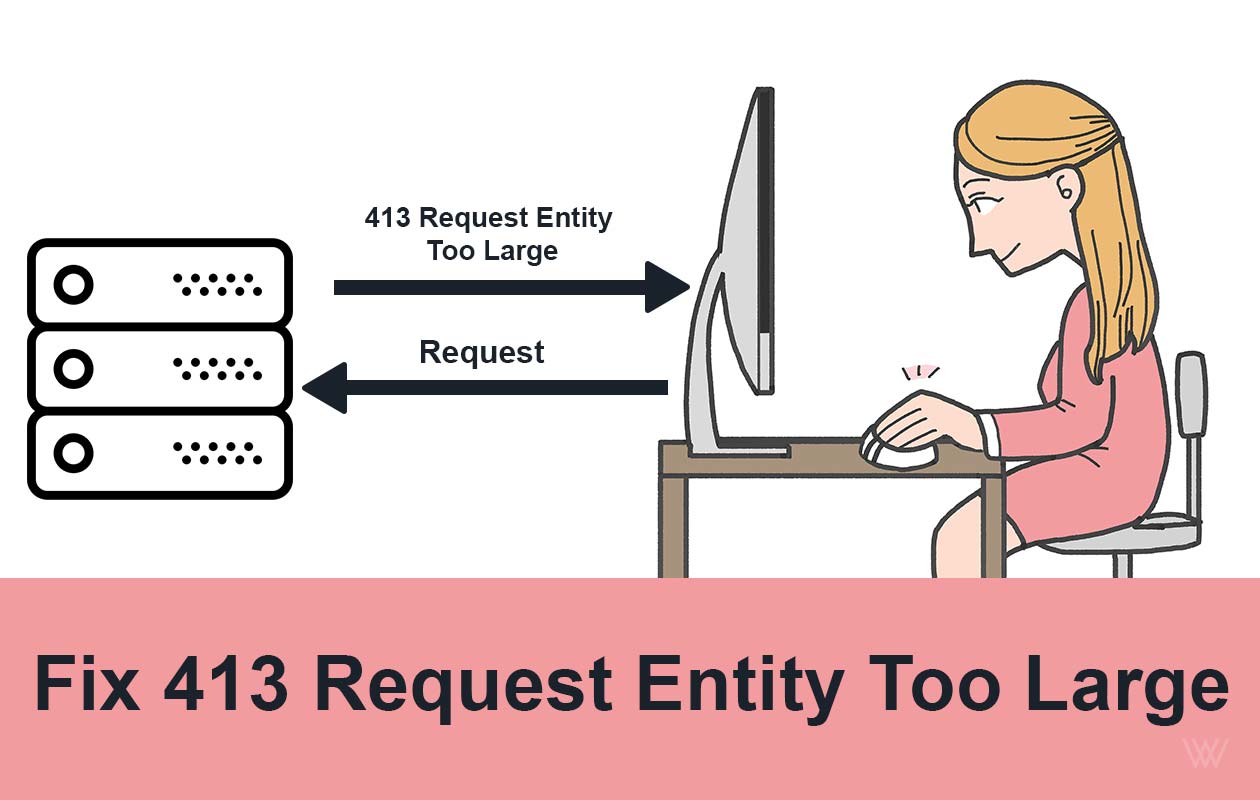
Fix 413 Request Entity Too Large Error on Nginx & Apache
Ever tried uploading a file or submitting a form, only to be greeted by the frustrating 413 Request Entity Too Large error? You’re not alone. This issue commonly pops up when your server thinks the data you’re sending is “too big” to handle...

How to Fix Failed to Initialize Plugin: wplink in WordPress
If you’ve ever tried adding a link inside the WordPress editor and been greeted by the error “Failed to initialize plugin: wplink” , you already know how disruptive it can be. The link button stops working, the editor feels broken, and sudd...
25 Best Linux Commands Every Sysadmin Should Know
If you’ve spent any time managing Linux servers, you already know this truth: the command line is not optional. It’s where real troubleshooting happens, where performance issues are understood, and where outages are prevented before users e...
Join the Conversation & Perspective
Have thoughts, counterpoints, or reflections on this story? Engage directly with fellow readers and editorial contributors.
No comments on this guide yet. Be the first to share your thoughts or ask a question!